
In the Hanze print portal and the Campus Print app, you can top up your print credit manually every time the credit runs out, but you can also choose to top it up automatically. You then issue a bank authorization. You can always switch off automatic top-up and and request a refund of the remaining print credit.
Enable automatic top-up in the print portal
- Go to: print.hanze.nl
- Log in with your username and password or with your guest account.
- Click the [Credit] tab.
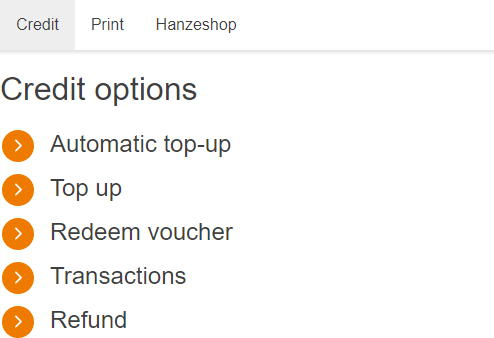
- Click [Automatic top-up].
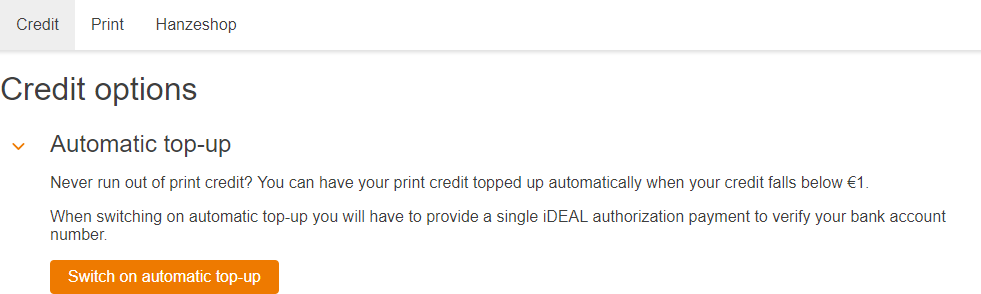
- Click [Switch on automatic top-up].
- Select the minimal top-up amount and your personal information.
- Click [Proceed to payment] to open the payment application.
- Select [iDEAL with recurring SEPA Direct Debit].
- Complete the payment procedure.
- Choose your bank and fill in all the required details. Do not forget to accept the conditions (red arrow). Then, click on [to iDEAL].
- Once the automatic payment is set up, the following screen appears:
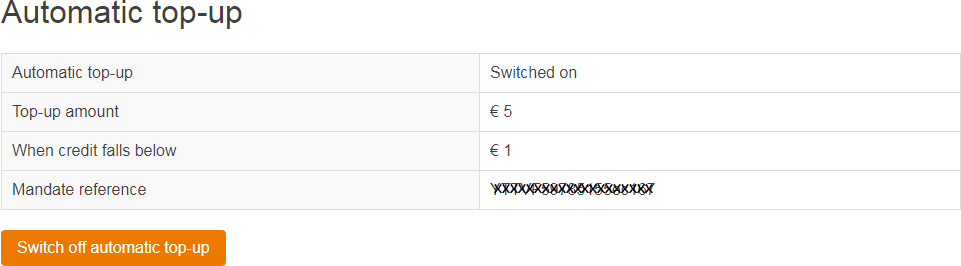
You will soon receive a message from CM.com at your Hanzehogeschool e-mail address to debit the top-up amount from your account. - Use the [Transactions] option to view the automatic payment transactions.
- Click the
 button and then click [Log out].
Disable automatic top-up
- Go to: print.hanze.nl
- Log in with your username and password.
- Click the
 button.
 - Click [Automatic pop-up].
- Click [Switch off automatic top-up].
Important: If you have a print credit lower than the threshold amount at the time of switching off, the print credit will be automatically topped up once more. - Tap on [Log out].