
You can increase the print credit with a voucher in the Hanze print portal and the Campus Print app. The voucher contains a code that you must enter.
Purchasing a voucher
- Go to print.hanze.nl
- Click on [Hanzeshop].
- Click on [Go to Hanzeshop].
- Go to vouchers via Articles. You can now order the vouchers.
Redeem a voucher in the print portal
- Go to: print.hanze.nl
- Log in with your Hanze account or log in as a guest user.
- Click on the [Credit] tab.
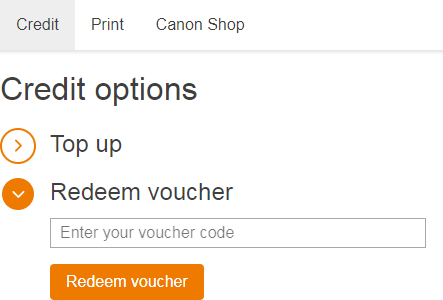
- Click on [Redeem voucher].
- Enter the code on the voucher.
- Click on the button [Redeem voucher].
- Click on [Transactions] to check the top up.
- Click on
 and then [Log Out].
Redeem a voucher in the Campus Print app
Make sure you have installed the Campus Print app on your smartphone or tablet. (Install the Campus Print app)
- Open the Campus Print app.
- If you are using the app for the first time, log in once with your Hanze or guest account.
- Select your location.
- At the top of your screen, tap [Top up] next to your print credit.
- Tap [Redeem voucher].
- Enter the code on the voucher.
- Tap the button [Redeem Voucher].
- Tap [Transactions] to check the top up.