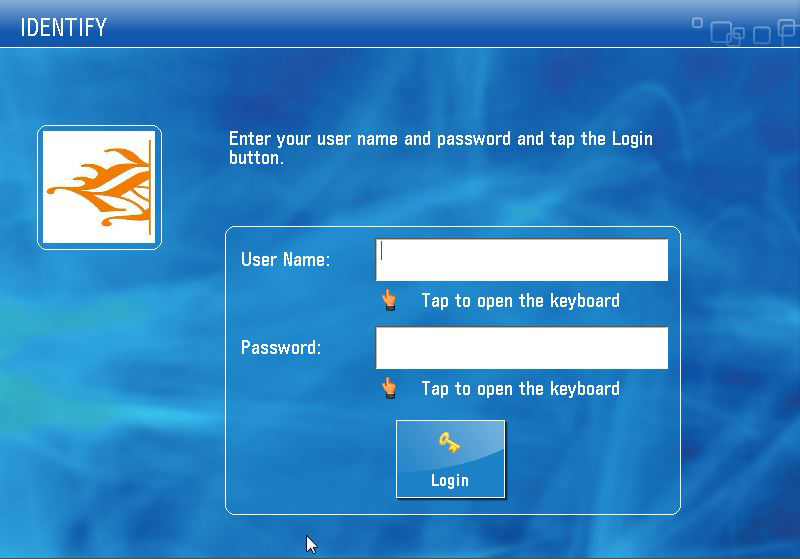
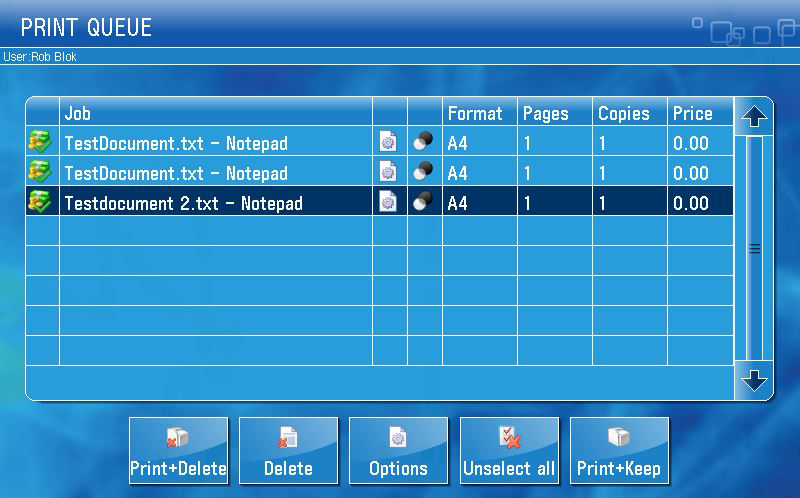
If you want to use your Hanze student card, Hanze employee card or a personal card, like an OV chip card, to log in to the printers, you need to connect your personal card to your account first. As soon as you are logged in your personal print queue will be displayed.
1. Log in with a Hanze or personal card
Place your card or pass on the card reader next to the user panel and wait until you hear a beep.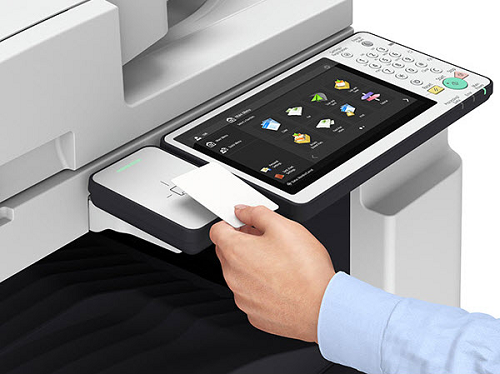
2. Login with the Campus Print app
The Campus Print app requires permission to use your device's camera to log in. The app will ask for this permission if it does not already have it.
- Open the Campus Print app.
- Choose Hanze as location.
- The first time you use the app, log in with your Hanze account or with your guest account.
- Tap [Log in].
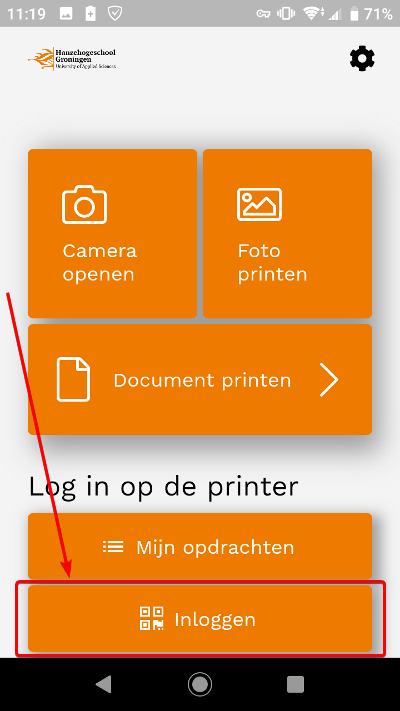
- Scan the QR code on the printer's control panel.
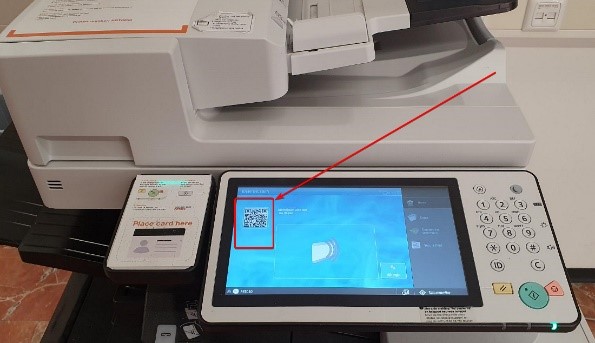
3. Login with your account
Forgot your card? You can always use your username and password to log in to a printer.
- In the start screen tap on [User ID].
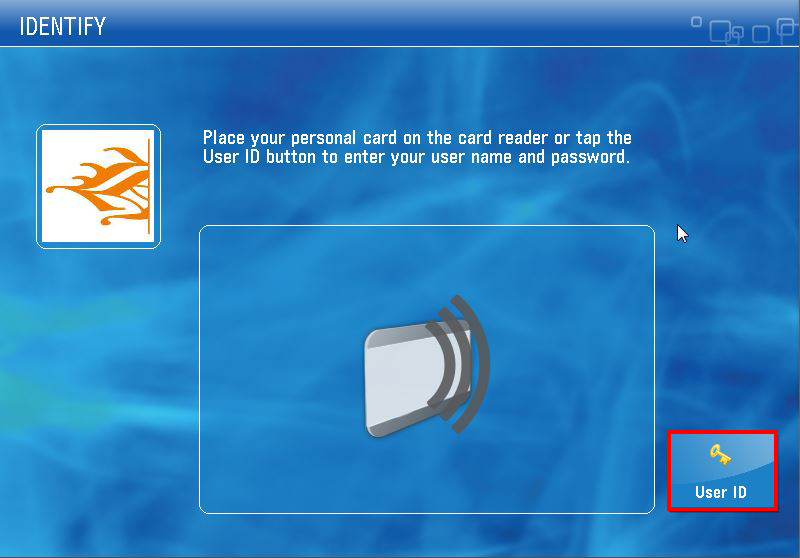
- Enter your username and password:
- For employees: 4-letter code
- For students: student number - Tap on [Log in].