
-
Go to a printer and log in. (Ways to log in)
-
Place your originals face up in the automatic document feeder.
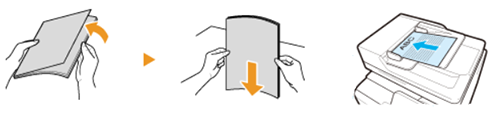
or face down on the glass plate.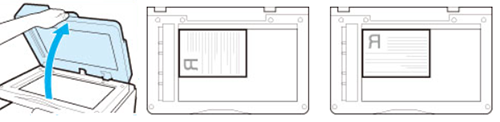
-
Press the [Home] button next to the user panel display and tap on [Scan].

Tip: You can also tap on the [Scan] shortcut button at the top of the user panel display.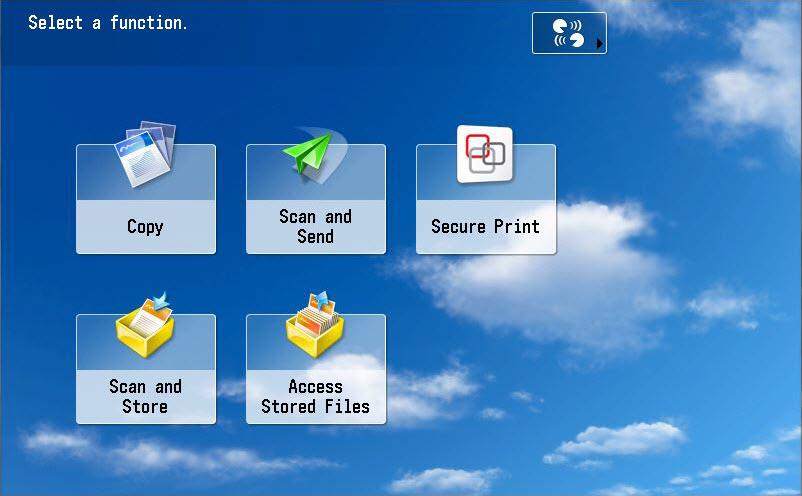
-
Specify your scan destination and adjust the scan settings if necessary.
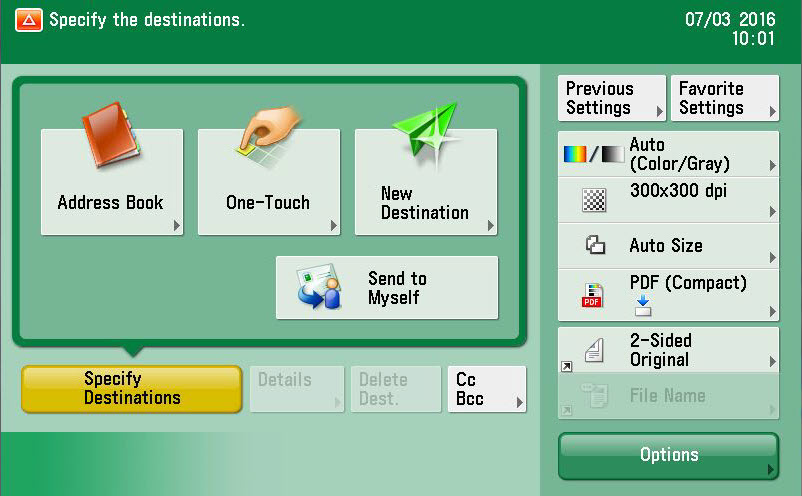
-
Press the green button. Your scanned documents are sent to the selected scan destination.
-
T log out, place your card on the card reader next to the user panel and wait until you hear a beep or tap [Log out]. In the Campus Print app, tap [Log out].